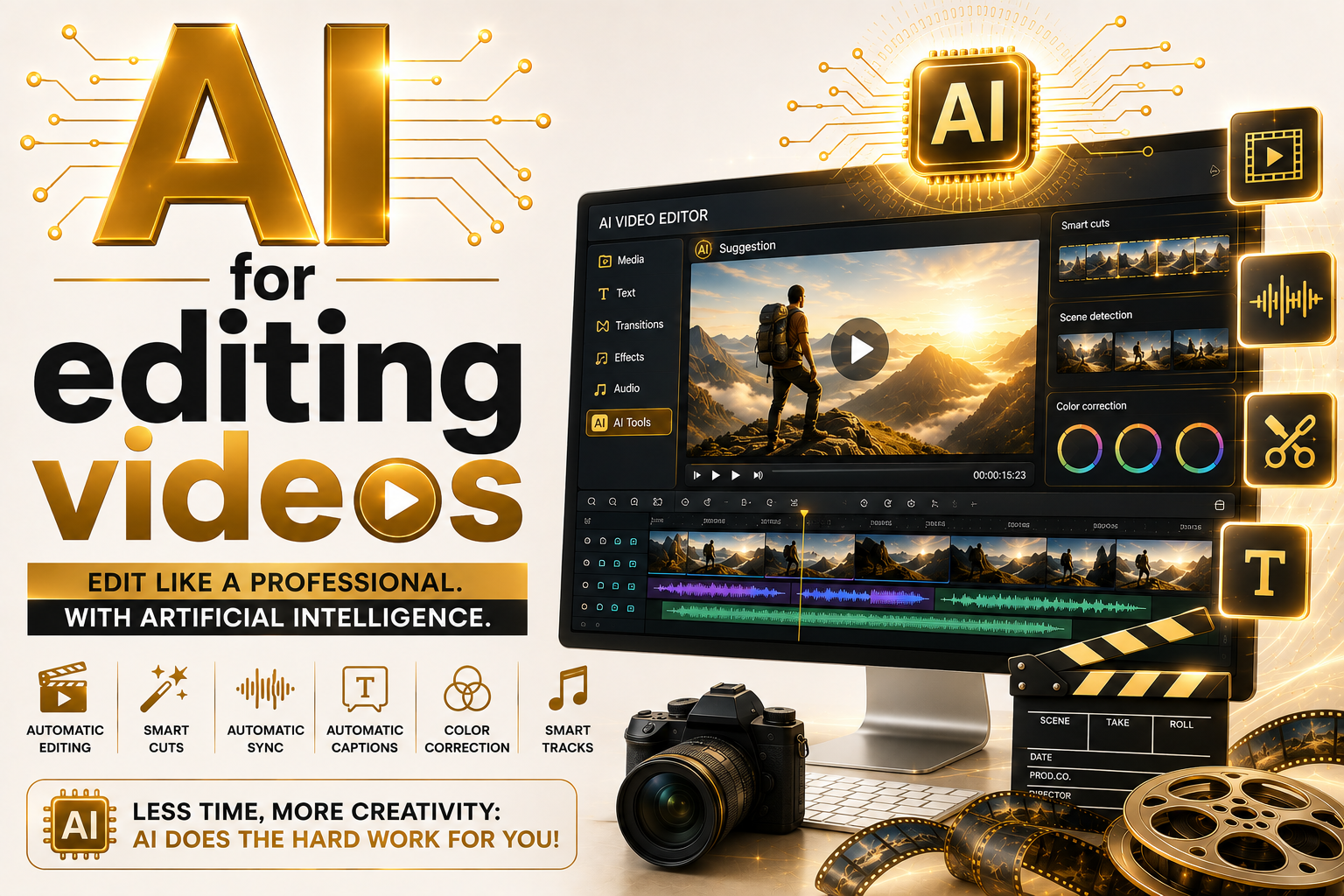
1. Creation vs. Editing: How AI Video Actually Works
Before comparing tools, it's worth separating two things the market often blurs together. AI video generation creates a clip from scratch out of a text or image prompt — that's what Sora, Veo, Runway, and Kling do. AI video editing works on footage you've already shot: cutting silence, generating captions, reframing for vertical, correcting color. Most real-world workflows combine both — real footage edited by AI, with a few generated clips filling gaps that would be expensive or impossible to shoot.
On the editing side, the most significant advance of the last few years wasn't generation itself, but transcript-based editing: the tool automatically transcribes the audio and turns the text into a kind of editable document — delete a sentence in the text and the corresponding video segment disappears too. On the generation side, the biggest leap has been models that produce scenes with plausible physics, lighting, and synced audio, with no camera involved at all — something that until recently was strictly VFX-studio territory.
2. Creating Video From Scratch: the Leading Text-to-Video Generators
Unlike editing, there's no raw footage here at all — you type a description and the tool hands back an entire clip, complete with camera movement, lighting, and in some cases synced audio. It's useful for visual concepts, ads, B-roll that's impossible to film (a historical scene, a fictional setting), or a quick idea test before investing in a real production.
| Tool | Strong point | Limitation | Best for |
|---|---|---|---|
| Sora (OpenAI) | Cinematic realism closest to actual footage, with natural physics and motion | Higher cost per second among the leaders; free tiers cap duration and resolution and add a watermark | High-realism conceptual scenes, ads, and visual-narrative testing |
| Veo (Google) | Best cost-to-quality ratio among the leaders and generates synced audio alongside the image, accessible through the same Google account | Less predictable in scenes with multiple characters interacting with each other | Realistic marketing concepts and workflows already inside the Google ecosystem |
| Runway | Fast generation with solid camera control and generative editing built into the rest of the workflow | Credit-based system can get expensive under heavy use compared to fixed per-second pricing | Visual effects, generative transitions, conceptual B-roll inside a larger editing workflow |
| Kling | Keeps character appearance consistent across different scenes from reference images | Works best with up to two characters per project — consistency drops beyond that | Multi-scene narratives and cinematic sequences with several shots |
Scenario: an agency needs a "futuristic office seen from above at dusk" shot to open an institutional video, but has no budget for a drone rental or a physical set. Generating the clip from a well-described prompt (angle, lighting, camera movement) costs a fraction of a real shoot and delivers a usable opener in minutes — as long as it's reviewed with the same care as any other footage before it goes into the final cut.
Common mistakes when generating video from scratch
- Asking for scenes with many characters interacting — most tools still lose visual and motion consistency as the number of elements in the scene increases.
- Skipping small-scale testing before spending paid quota — generating at low resolution or using free credits to validate the prompt before running the final high-quality version avoids wasted spend.
- Treating the generated result as final — hands, text, and continuity between cuts still fail more often than in video edited from real footage.
Best practices
- Explicitly describe camera angle, lighting, and movement — just like an image prompt, the more concrete it is, the more predictable the result.
- Use a reference image (where the tool supports it) to guide a character's or product's appearance across different scenes.
- Reserve pure generation for scenes that would be expensive or impossible to film, not as a default substitute for real footage you could just shoot.
3. Comparison: the Leading AI Video Editing Tools
Here the logic shifts: you already have footage — shot by you or generated in the previous step — and need a tool that cuts, organizes, and finishes it. No single tool wins across the board; the right pick depends on the kind of footage and the level of professional control you need.
| Tool | Strong point | Limitation | Best for |
|---|---|---|---|
| Opus Clip | Automatically turns long video into several short clips, identifying the best moments on its own | Less fine creative control than manual editing — works best as a first pass to refine afterward | Repurposing long livestreams, podcasts, and interviews into social media content |
| CapCut | Free, automatic cutting, ready-made captions, export built specifically for social media | Advanced generative features are often paywalled, with watermarks on some plans | Content creators, quick editing straight from a phone, vertical format |
| Descript | Transcript-based editing — cut the video by editing the text like a Word document | Adjustment curve for anyone already fluent in a traditional timeline and used to direct visual control | Podcasters, educational video creators, anyone talking to camera |
| Adobe Premiere Pro | Full professional timeline with integrated generative AI (scene extension, generative fill) | Pricier subscription and requires more robust hardware than cloud-based alternatives | Professional production that needs fine control and integration with the rest of the Adobe ecosystem |
4. The Features That Actually Change the Editing Workflow
Not every "AI-powered" feature saves real time. Some have become genuinely indispensable, others are still more demo than mature tool. These are the ones that consistently change the workflow:
- Automatic transcription and text-based editing: turns the video into an editable document, cutting out the slowest step of traditional editing.
- Automatic silence and filler-word removal: detects long pauses, "ums," and repetitions and suggests a cut — still worth a manual review so you don't cut an intentional dramatic pause.
- Styled automatic captions: generate synced captions and already apply visual styling suited to the destination platform (centered block for Reels, lower-third for YouTube).
- Automatic reframing (16:9 to 9:16): tracks the face or main subject of the scene when cropping to vertical, saving the manual step of repositioning the frame clip by clip.
- AI color correction: applies a balanced first pass based on scene analysis, working as a starting point rather than a full manual grade.
- Background removal and replacement: cuts out the background without a physical green screen, useful for anyone recording without a dedicated studio.
- AI-generated B-roll: fills in a scene that was never shot — a generic office meeting, a landscape, a conceptual transition — without paying for stock footage.
- Voice cloning dubbing and translation: translates speech into another language while preserving the original voice's timbre and adjusting lip-sync.
Traditional workflow: record a 40-minute interview, watch the whole thing again looking for the best moments, manually cut it in the timeline, export, review. Transcript-based workflow: the tool automatically transcribes the 40 minutes, you read the text like a document, delete the weak parts directly in the text, and the matching video cut follows along. The time saved doesn't come from "AI edits by itself" — it comes from swapping "watch and drag" for "read and delete," which is much faster for the human brain to process.
Common mistakes when adopting AI editing
- Accepting automatic silence cuts without review — the tool can't tell a hesitation pause from an intentional dramatic pause, and cutting both the same way hurts the video's pacing.
- Using AI-generated B-roll without checking visual consistency — clips generated in separate sessions can have slightly different lighting and style, breaking the final video's visual coherence.
- Fully trusting automatic captions without review — proper names, technical terms, and regional slang still get transcribed incorrectly more often than everyday speech.
Best practices
- Use transcript-based editing for the first cut and refine the pacing manually afterward — it's faster to edit on top of a rough draft than to start from zero.
- Generate a few B-roll variations and pick the one that best matches the rest of the video's color palette, instead of accepting the first generation.
- Review every automatic caption before publishing, especially in videos that mention a brand name, product, or specific technical term.
5. What's Confirmed and What's Still a Gray Area
Both AI video generation and editing are moving fast, and it's easy to mistake a mature feature for a marketing promise. It's worth separating the two before you build your workflow around a specific tool.
On the generation side, models like Sora and Veo already produce short clips with plausible physics and lighting, and Veo already generates synced audio natively — that's no longer a promise, it's a feature available today in commercial production. On the editing side, transcription, automatic silence removal, automatic captions, and background removal without a green screen are already mature features in wide use, available on most relevant commercial tools. Professional editors like Adobe Premiere Pro already integrate B-roll generation and generative scene extension directly into the traditional timeline.
Generating a scene with multiple characters interacting consistently is still unstable across most tools — most recommend at most two characters per project to keep appearance coherent between scenes. Fully autonomous end-to-end editing — raw footage in, publish-ready video out, with zero human decisions — works reasonably well for short-form social content, but is still inconsistent for long-form, narrative video. Rules around consent and use of voice cloning for dubbing also vary from platform to platform and country to country, and there's still no single international standard on what must be disclosed to the public when a voice or a scene is synthetic.
6. From Raw Footage (or a Prompt) to Publish-Ready: Building a Real Workflow
An efficient AI-assisted workflow doesn't eliminate steps — it reorganizes where human time gets spent. Instead of spending most of your time manually cutting, you spend most of it reviewing and fine-tuning what the AI already prepared.
| Stage | What to do | Why it matters |
|---|---|---|
| 0. Generation (optional) | Generate specific clips that would be expensive or impossible to film | Fills script gaps without relying on paid stock footage or a new shoot |
| 1. Transcription | Automatically transcribe all the raw footage | Turns hours of footage into a searchable, text-editable document |
| 2. First cut | Remove silence and select the best takes by editing the text | Eliminates the slowest step of traditional editing without touching a timeline |
| 3. B-roll and effects | Select B-roll (filmed or generated) to cover cuts and transitions | Fills visual gaps without stock footage costs or a new shoot |
| 4. Color and audio | Apply an initial AI color pass and AI noise cleanup on the audio | Consistent starting point before manual fine-tuning |
| 5. Captions and format | Generate captions and reframe for each destination platform | Every social platform has its own aspect ratio and caption style — automating this saves repeated exports |
Can you generate an entire video from text alone, with no filming? Yes, for short clips (a few seconds) — for longer videos, you still need to stitch several generated clips together in a traditional editor. Do automatic captions work well for non-English languages? Generally yes, but technical terms, regional slang, and proper names still get transcribed incorrectly more often than in English. Can you edit video with AI right from your phone? Yes — tools like CapCut were built specifically for that workflow, no computer required.
7. Practical Applications by Field
Every kind of creator combines generation and editing a bit differently, and it's worth calibrating expectations to the goal:
- Content creators and YouTubers: quickly cutting long livestreams and recordings into short social clips, with automatic reframing for vertical.
- Businesses and marketing: corporate and training videos produced from a script, with generated scenes covering concepts that would be expensive to film, captions, and brand identity applied automatically.
- Education and online courses: recorded lectures turned into edited modules quickly via transcript editing, without requiring advanced editing skills from the instructor.
- Podcasters: turning audio-only episodes into video with captions and highlight clips for social media, reusing content that already existed as a recording.
8. Beyond What's Possible: Speculation and the Future — How Far Can AI Video Creation and Editing Go?
This section separates plausible extrapolation from what still belongs firmly in speculation. Nothing here is guaranteed.
Plausible in the short-to-medium term
Natural-language voice editing commands ("cut the long pauses and tighten the pace in the second block") already exist in early form and are likely to mature quickly. B-roll generation with consistent character or product appearance across an entire video — currently still unstable between generations — is one of the declared research priorities at the major companies in the space.
Still distant or uncertain
Automatic dubbing indistinguishable from the original audio across any language pair, with perfect lip-sync on live rather than pre-recorded video, isn't a stable reality yet — it works well under controlled conditions but breaks down in harder recording scenarios. A unified international standard requiring disclosure of synthetic voice also doesn't exist yet, with every country and platform following its own criteria.
Speculation / science-fiction territory
Fully autonomous direction of a long-form narrative — an entire feature-length script edited from start to finish with zero human creative decisions — is discussed as a very long-horizon research direction, but remains far from any commercial product available today.
9. Practical Checklist: Before Publishing an AI-Created or AI-Edited Video
- Confirm the commercial usage license for any generated scene before including it in a published or sold video.
- Manually review every automatic silence cut, making sure no intentional pause was accidentally removed.
- Check the entire automatic caption track, paying extra attention to proper names and technical terms.
- Check visual consistency between AI-generated segments and the rest of the video (color, lighting, style).
- Confirm explicit consent before using voice cloning on any real person, including yourself, for another language.
- Export in the specific format and aspect ratio for each destination platform, instead of reusing the same file everywhere.
- Keep the original raw footage — an AI-edited cut doesn't replace a backup of what was actually filmed.
Conclusion: AI Shortens the Path, but Doesn't Replace Editorial Judgment
Anyone who treats AI video as "generate or upload the material and ship it" ends up with generic results that lack pacing and identity — because decisions about rhythm, emphasis, and dramatic cuts are still human work. The real gain comes from letting AI handle the mechanical, repetitive work — generating a scene that would be expensive to film, transcribing, removing silence, captioning, reframing — so human time gets spent on the part that actually separates a good video from an average one: editorial judgment.
Start by testing transcript-based editing on your next talking-head video, and if you need a shot that's impossible to film, try a text-to-video generator with a well-described prompt — it's the fastest way to see in practice where AI actually saves you time.
Frequently Asked Questions (FAQ)
Generation creates a clip from scratch out of a text prompt, with no filming involved. Editing works on footage you've already shot, automating cutting, captions, and color correction.
Not necessarily — transcript-based editing tools, like Descript, let you cut video by editing text, without touching a traditional timeline. For more advanced effects, timeline knowledge still helps.
It depends on the goal. For generating a scene from scratch, Sora stands out for realism and Veo for cost-to-quality with native audio. For editing real footage, CapCut is strong for social media, Descript for transcript-based editing, and Adobe Premiere Pro for full professional production.
For short, repetitive content, often yes. For long-form, narrative, or strongly brand-driven video, AI today works better as a copilot that speeds up the mechanical work than as a replacement for the editor or director.
Only with the explicit consent of the person whose voice is being cloned, and after checking the specific rules of the platform where the video will be published — they vary and keep changing.
Depends on the tool. Cloud-based solutions like CapCut, Descript, Sora, and Veo process most of the heavy lifting on their servers. Professional editors like Premiere Pro with advanced generative features benefit from more robust hardware.
* Amazon affiliate links. Buying through them supports TechTurbo at no extra cost to you.
Get the news before everyone else
AI, digital security, and technology — every week, straight to your inbox. No spam.